Appark’s Monitoring List helps you track version updates and store listing changes for apps you follow. Choose events to monitor, compare previous and updated listing content, and receive daily email digests to spend less time checking individual app store pages.
How to Use the Monitoring List
The steps below show how to follow a competitor’s version updates, store listing changes, and subscription pricing.
1. Add Apps You Want to Follow
Start with apps relevant to your research that you want to track over time. There are three ways to add them:
- From the Monitoring List: Enter an app name in the search box, then select the plus icon beside the app in the results.
- From rankings or search results: In Download & Revenue Rankings, Download & Revenue Growth Rankings, or Advanced Search, click the empty area of an app’s row to select it. You can select multiple apps, then choose Add to Monitoring List from the action bar below the results.
- From App Details: Click an app’s name to open App Details, then select Add to Monitoring List at the top of the page.
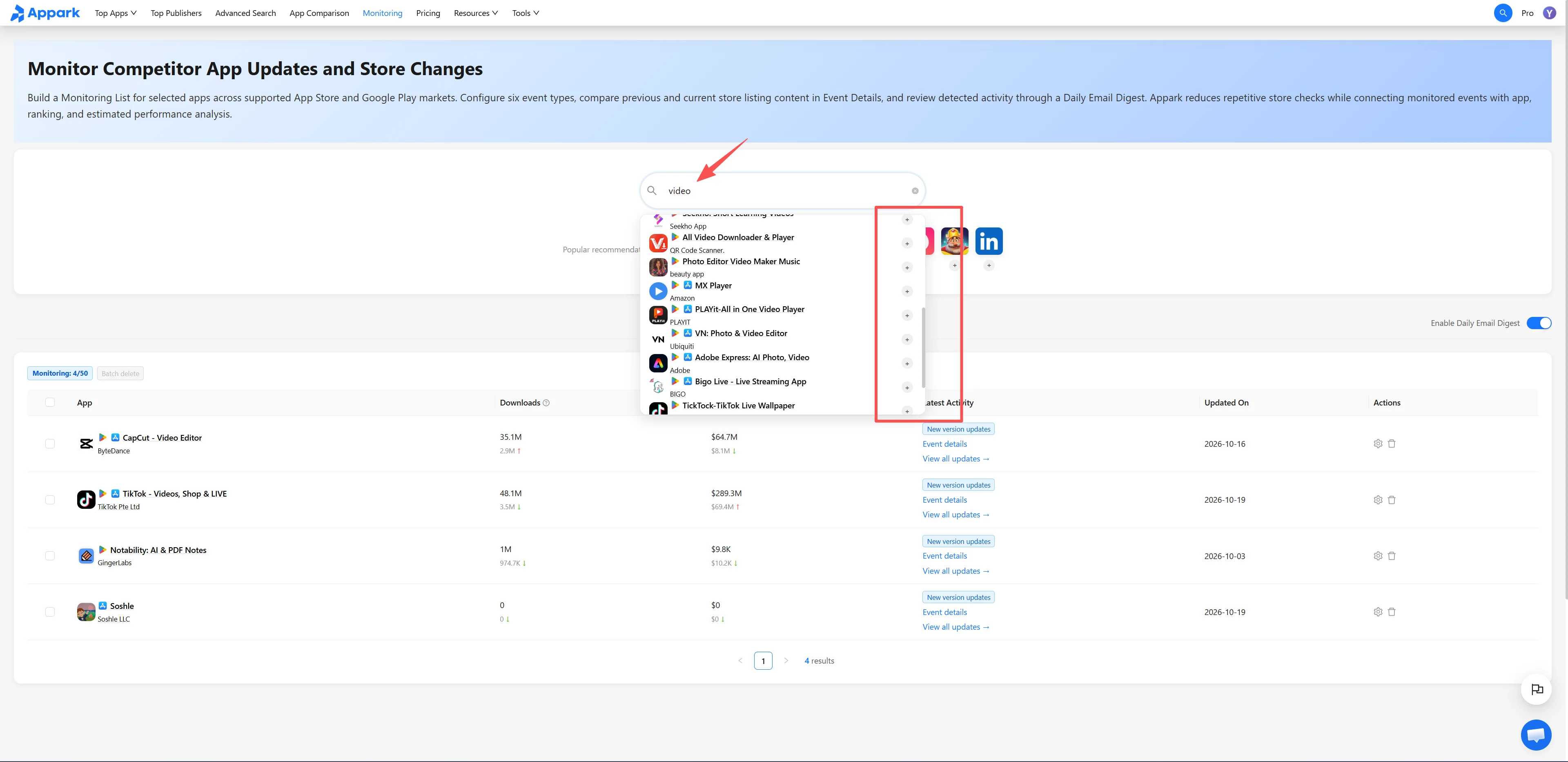
Figure 1: Add apps to monitoring
2. Choose Events Based on Your Research Goals
Select the gear icon on the right side of an app’s row to open Monitoring Settings. Under Events to Monitor, select the events relevant to your research—for example, Version Updates and Pricing Changes—then select Confirm to save.
Add ranking, rating, or availability events when they become relevant. You can adjust your selections later; there is no need to enable every event type.
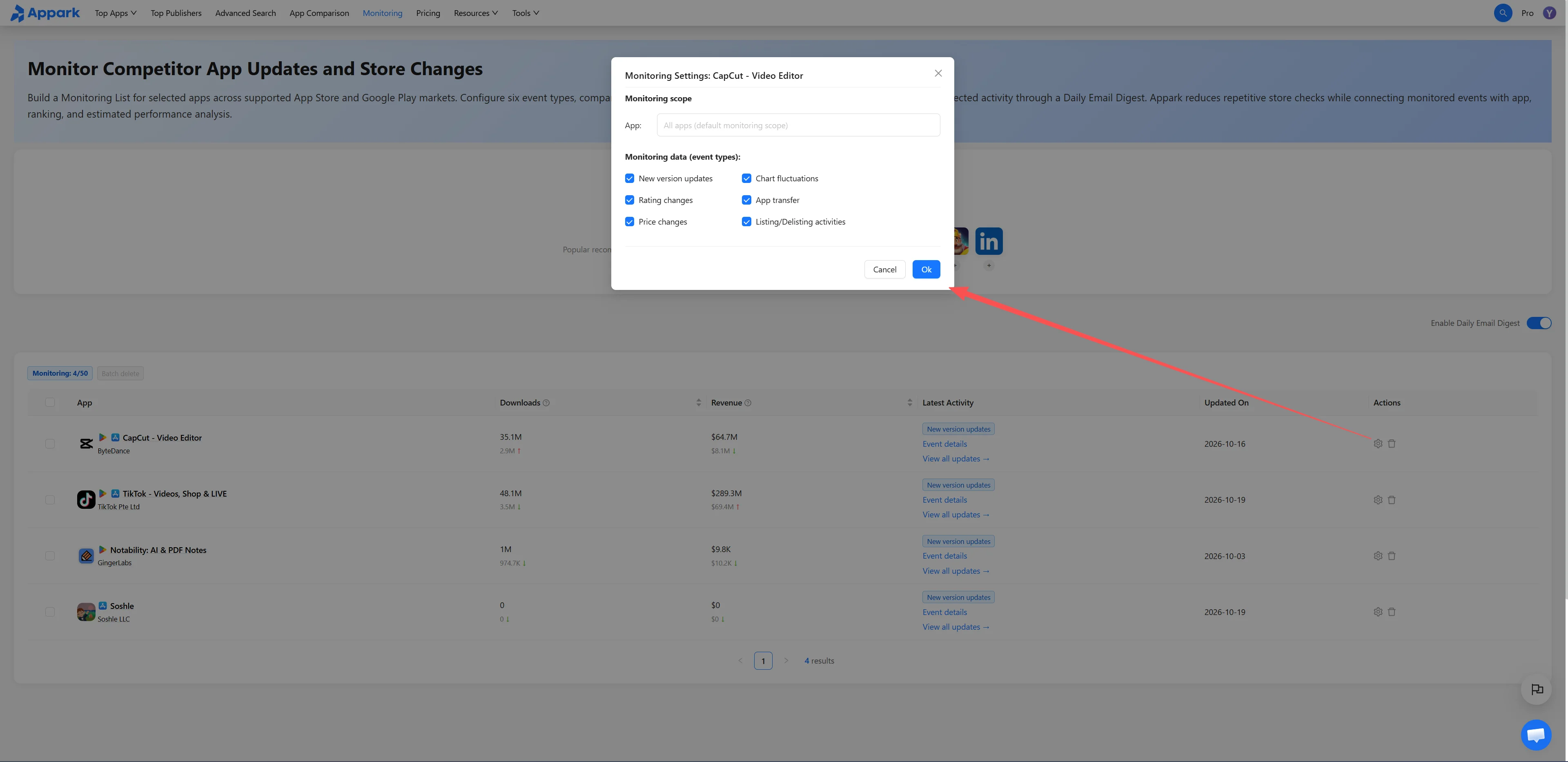
Figure 2: Choose monitoring events
3. Review the Details of Each Change
Check Latest Activity for the event type and the time of the recorded change. Open Event Details to compare previous and updated content, including text, app icons, screenshots, app names, and subtitles or short descriptions. The fields available depend on what Appark recorded for that event.
To review changes over time, select View All Activity to open the app’s activity history in App Details.
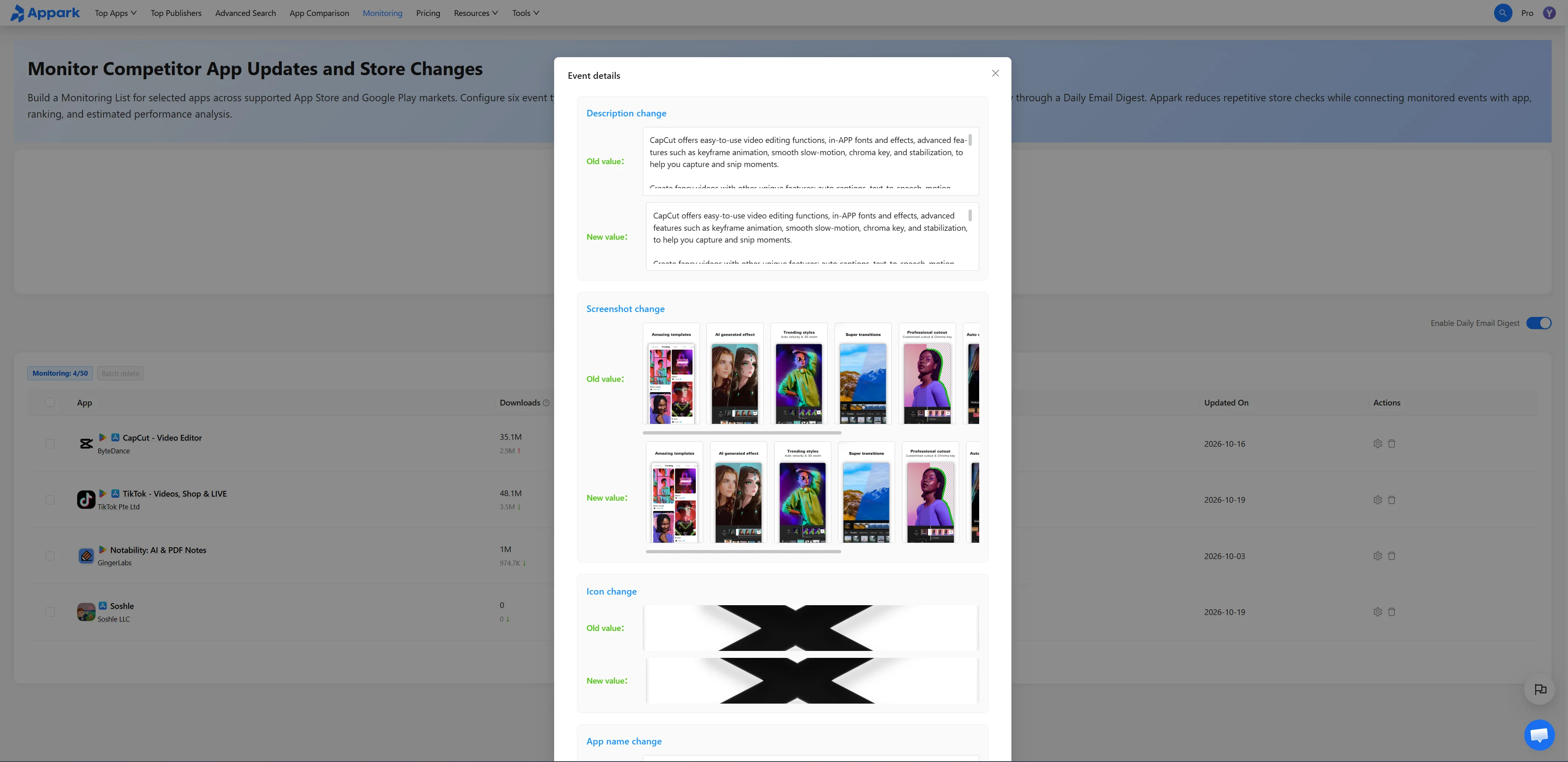
Figure 3: Review event details
4. Enable the Daily Email Digest
Turn on Enable Daily Email Digest above the list to receive a summary of your selected events at the email address associated with your account. Adjust event settings as your research priorities change, and remove apps you no longer follow to make room for new ones. Visit Pricing for plan details and limits on monitored apps.
For a closer look at performance changes, open App Comparison to compare Estimated Downloads, Estimated Store Revenue, and Chart Ranking trends.
Event Types and Coverage
Which Events Can You Monitor?
| Event Type | Description |
|---|---|
| Version Updates | New versions and recorded changes to Release Notes, App Icon, Screenshots, App Name, Subtitle or Short Description |
| Chart Ranking Changes | Changes in Free, Paid, or Grossing chart rankings |
| Rating Changes | Increases or decreases in an app’s rating |
| App Transfers | Changes to the app’s developer account |
| Pricing Changes | Changes to subscription pricing |
| Availability Changes | Changes in whether an app is available or removed |
Event Details supports comparisons of previous and updated Release Notes, App Icon, Screenshots, App Name, and Subtitle or Short Description. Available fields depend on the content recorded for each event.
Which Stores and Markets Does Monitoring Cover?
Once you add an app, Appark monitors activity across the App Store, Google Play, and its global market coverage. Current event records are not separated by individual store, country, or region, so an event alone does not identify which store or market the change occurred in.
How to Analyze Competitor Changes and Later Performance
Review Store Listing Changes. Compare app names, subtitles or short descriptions, icons, screenshots, and Release Notes to see which messages or visual elements a competitor has added, removed, or emphasized. Use these observations as references when researching your own store copy and creative assets.
Track Pricing, App Transfers, and Availability. Subscription pricing changes can provide a starting point for pricing research. App Transfers indicate changes to the listed developer account, while Availability Changes help you track whether an app becomes available or is removed. Check additional information to understand the broader context.
Compare Events with Later Performance. Compare recorded event dates with Chart Ranking trends and monthly Estimated Downloads and Estimated Store Revenue before and after each event. This can help distinguish short-term fluctuations from sustained changes and identify questions for further research. Events occurring near performance changes may offer clues, but timing alone does not prove causation.