
Use Appark Advanced Search to combine Tags, dates, estimated downloads, and estimated store revenue to find apps that match your product focus and target scale. Build a competitor shortlist, then review app details, compare historical performance, or monitor changes.
How to Use Advanced Search
This example finds similar apps in the United States released within the past six months, with estimated store revenue of USD 10,000–100,000 in the previous complete calendar month.
1. Select Your Market, Store, and App Focus
Set Country/Region to United States in the left panel. Choose App Store or Google Play to research one platform, or All Stores to combine data from both.
Select relevant Tags for your product focus. A specific Store also enables Category, Rating Range, Rating Count, and Store Status. Add only the filters your research needs.
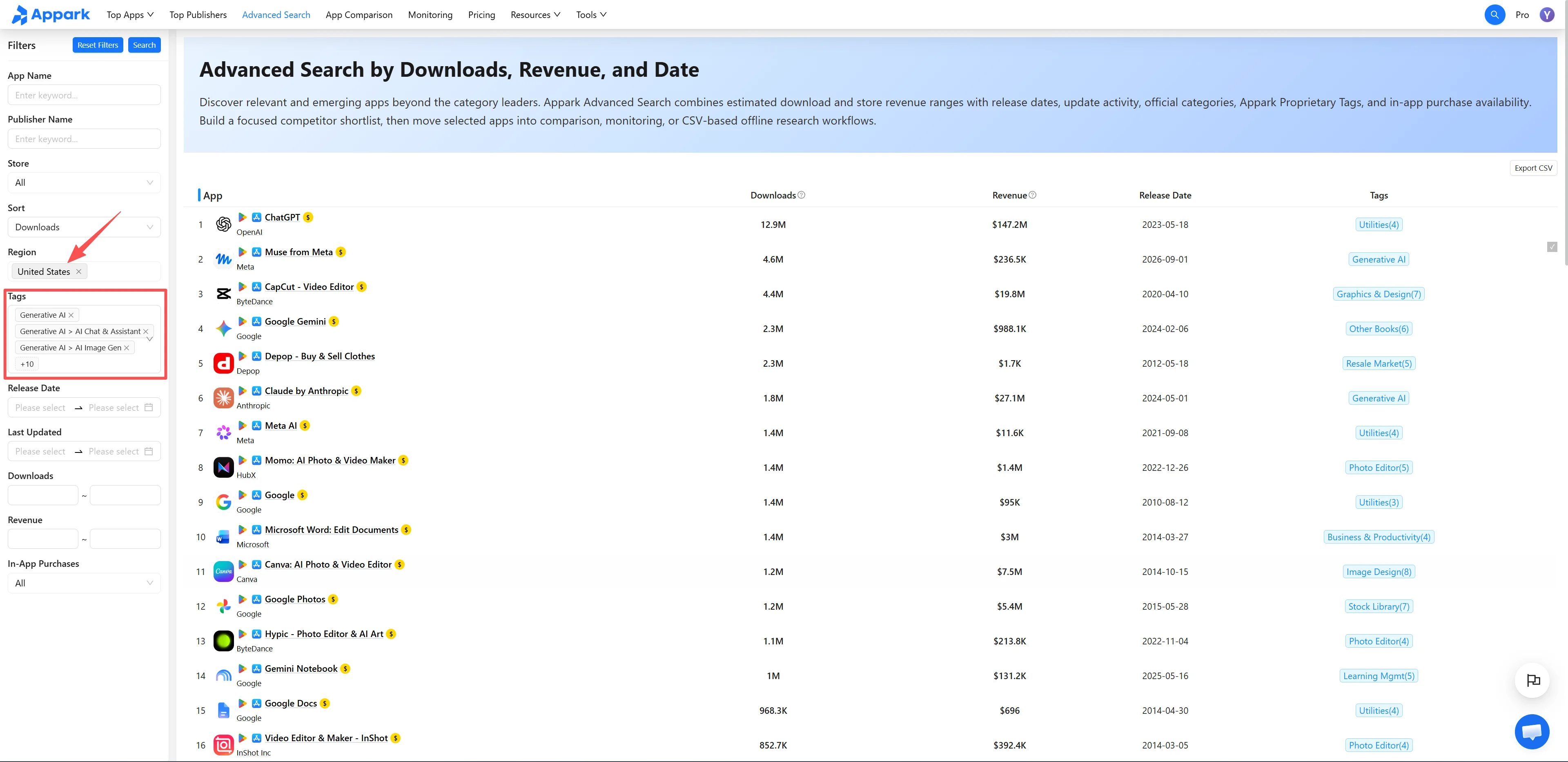
Figure 1: Select market and app focus
2. Set Performance and Date Ranges
Set Revenue Range to USD 10,000–100,000 and enter a Release Date range covering the past six months. Use Download Range if download volume is relevant to your research.
Add a Last Updated filter to find apps with recent version updates. A recent update alone does not establish growth or commercial success. Sort by Downloads or Store Revenue, then select Search. These are the only sorting options.
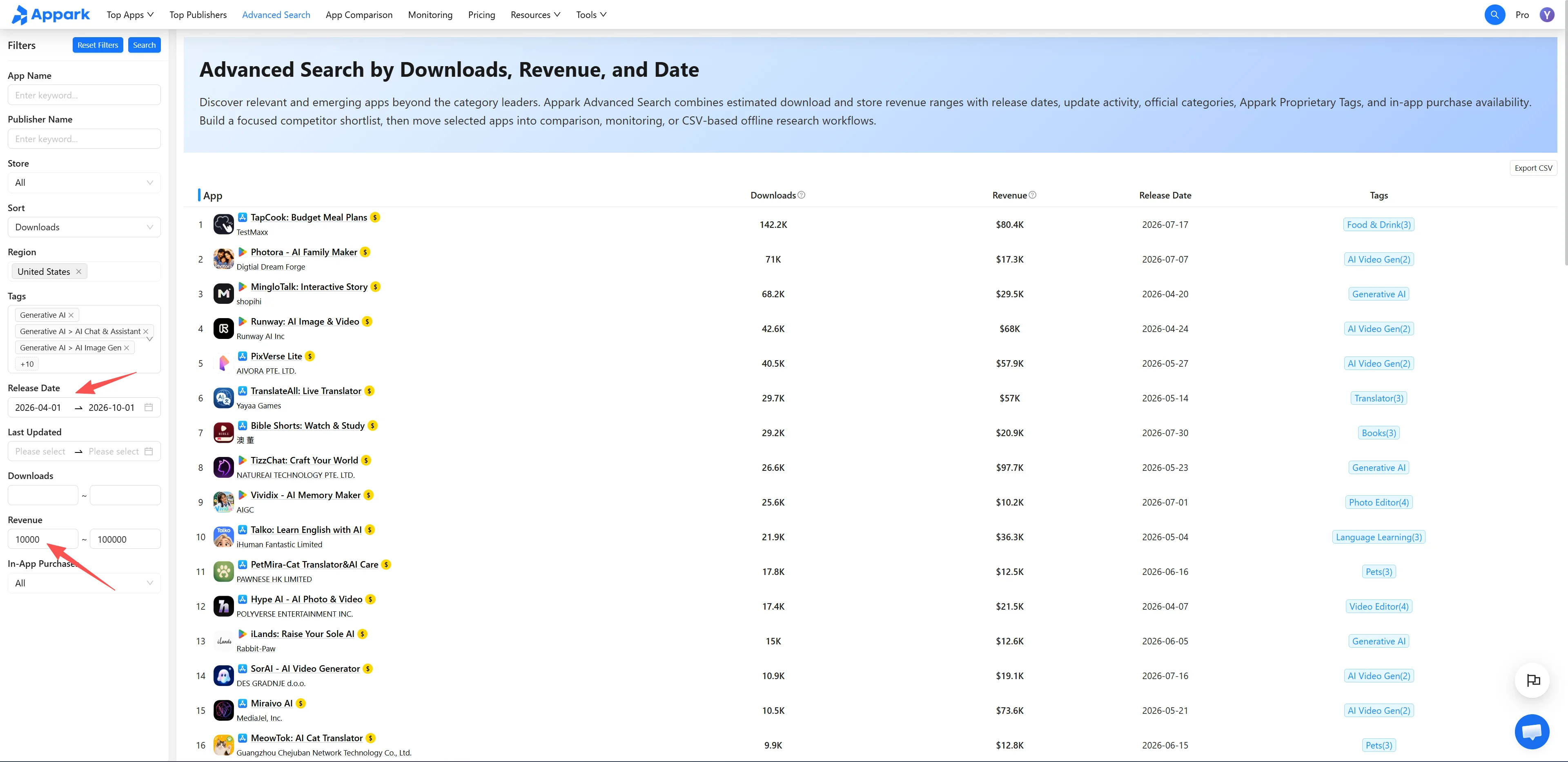
Figure 2: Set performance and date ranges
3. Refine Your Filters
Check whether the results match your product before adjusting:
- Too many results: Narrow the performance or date range, or add another relevant filter.
- Too few results: Widen the performance or date range, remove a secondary condition, or include related Tags.
- Irrelevant results: Reconsider your Tags and Categories instead of relying only on download or store revenue thresholds.
Change one condition at a time, select Search, and review its effect. Select Reset to start over.
4. Review, Compare, Monitor, or Export Apps
Compare app names, Tags, Release Dates, Downloads, and Store Revenue. Select an app name to open App Details and review its features, versions, and store listing. Select a publisher name to open Publisher Details and explore its other apps.
Select the empty area of a result row to select the app; you can select multiple apps. Use the action bar to add them to App Comparison or a Monitoring List.
Select Export CSV in the upper right to export results. Availability and quotas depend on your plan; see the Pricing page for details.
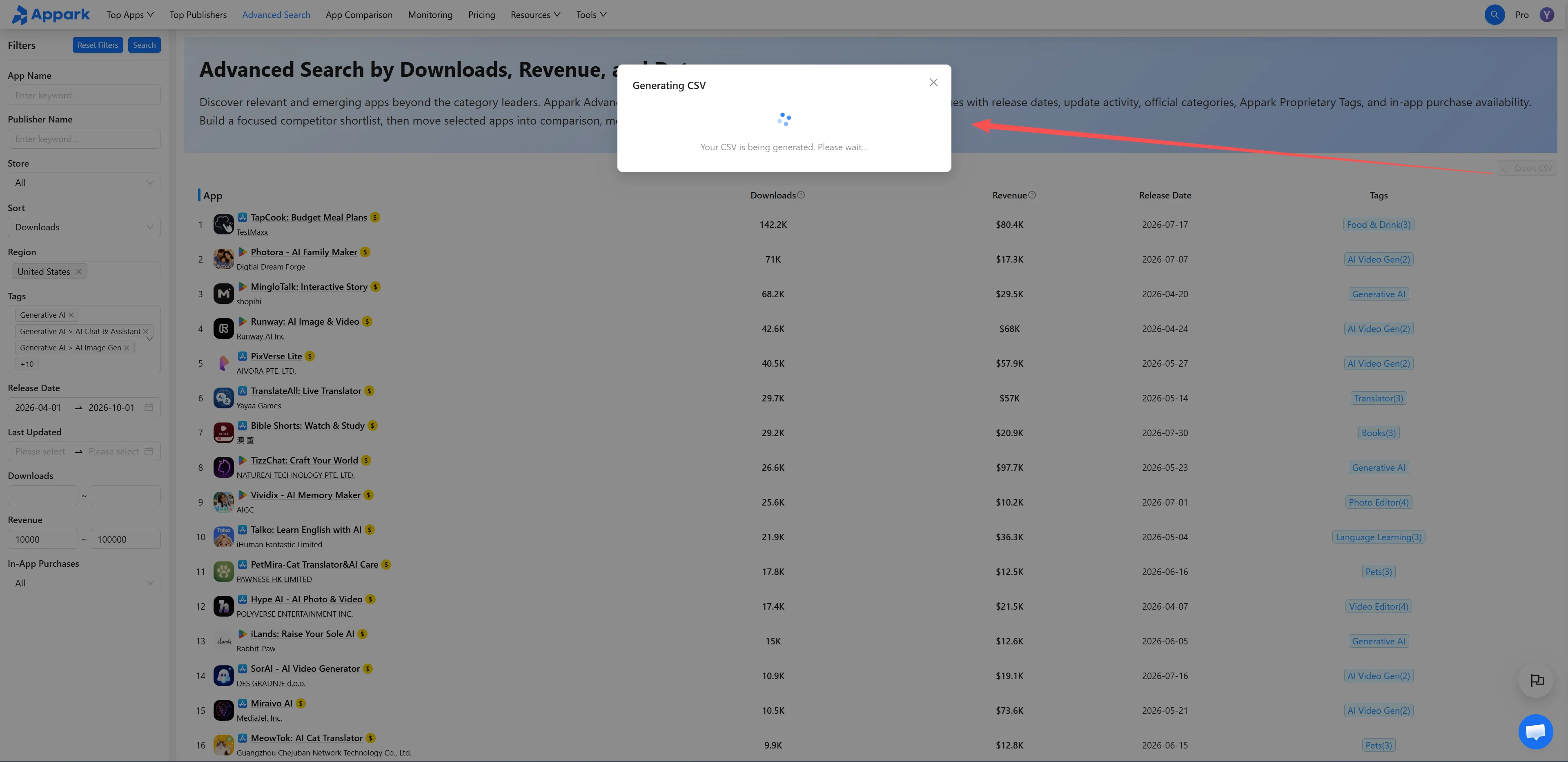
Figure 3: Review and export results
Data Definitions and Filter Rules
Downloads, Store Revenue, and Dates
| Field | Definition |
|---|---|
| Downloads | Estimated downloads for the previous complete calendar month within the selected Country/Region and Store scope. |
| Store Revenue | Estimated consumer spending through the selected app stores for the same month and markets. Enter revenue limits in USD. |
| Release Date | The app’s first release date. Under All Stores, the earlier date is used when the app exists on both stores. |
| Last Updated | The date of the app’s most recent version update. |
Downloads and store revenue always represent the previous complete calendar month. Date filters do not change this reporting period. On October 15, for example, the metrics represent September. Filtering for apps released within six months does not show cumulative revenue for those six months.
Store revenue includes applicable paid downloads, in-app purchases, and subscriptions. It is not developer profit and excludes advertising revenue, ecommerce transactions, web payments, off-store payments, and third-party payment channels.
How Filters Work Together
- Different filter types must all match (AND). An app must satisfy the selected Tags, Release Date, and Revenue Range conditions.
- Multiple Tags match any selected tag (OR). Adding related Tags broadens coverage. To narrow results, tighten a range or add another filter type.
- Multiple countries or regions include the selected markets. Estimated downloads and store revenue are summed across those markets.
Store Scope, Status, and In-App Purchases
All Stores combines App Store and Google Play estimates when Appark identifies their listings as the same app. Selecting a specific Store limits estimates to that store.
Category, Rating Range, Rating Count, and Store Status appear only after selecting a specific Store. Category follows that store’s category system; Tags use Appark’s app classification taxonomy.
Store Status options are Pre-Order, Available, and Removed. Pre-Order does not predict launch performance. Removed does not necessarily mean permanent removal or a policy violation.
The Has In-App Purchases filter and yellow IAP indicator show whether an app supports in-app purchases. They do not establish meaningful IAP revenue, its primary monetization model, or whether it contains advertising.
Use Advanced Search for Competitor Research
Find established apps to benchmark against. Select relevant Tags and set download or store revenue ranges that match your research needs. Leave Release Date unrestricted to include mature products.
Research a publisher’s relevant apps. Enter the publisher’s name, then narrow the results by Store, Tags, Downloads, or Store Revenue to find apps relevant to your research.
Find apps by store status. Select a specific Store, then filter by Pre-Order, Available, or Removed. Open App Details to verify the relevant information.
To explore leading apps in your target market, see Downloads & Revenue Rankings. To find apps with recent growth, use Rising Apps, then refine your research scope with Advanced Search.