

Google Play Trader Status: Deadline and 2027 Checklist
Last reviewed: November 13, 2026
Google Play requires all active developer accounts to declare their trader status by February 1, 2027. The requirement applies worldwide, including developers whose apps are not distributed in the European Economic Area (EEA) or the United Kingdom.
The easy part to miss comes after you save your account declaration: if you declare as a trader, you must also confirm the status for each app in your portfolio. You will also be asked for an app-specific terms of service link.
Here is how to work through the declaration, check what users will see, and avoid leaving an app unfinished.
The dates to put on your release calendar
| Date | What it means |
|---|---|
| February 1, 2027 | Existing active developer accounts must complete the trader status declaration. |
| When a new account is created | New developer accounts must submit the declaration during account creation. |
| March 1, 2027 | Google Play's marketplace changes take effect in the EEA and UK, alongside changes to the developer information shown to users. |
Missing the declaration deadline can lead to blocked app updates and removal from Google Play globally. The February deadline and March marketplace changes are separate: March is not an extra month to finish the declaration. See Google's trader status guidance for the current requirements.
For a small publishing team, a useful first step is to assign an owner and list every app that needs review. Keep that list alongside your release checklist so the task does not disappear between product, operations, and the account owner.
Trader or non-trader: what should you consider?
Trader status concerns the activity behind your apps. A free download price or a personal developer account does not settle the question.
Consider whether you develop and publish apps as a business, receive or intend to receive payment, or carry out commercial activity on a regular basis. Revenue can come from paid downloads, subscriptions, in-app purchases, advertising, or promoting a separate paid service. A product can have a commercial purpose before it earns its first dollar.
These examples help identify what to review; they are not automatic legal classifications:
| Your situation | What to consider |
|---|---|
| A free app earns advertising revenue | Free installation does not make the activity non-commercial. |
| A solo developer sells subscriptions | Being an individual does not rule out trader status. |
| A free utility brings customers to a paid business | The commercial purpose extends beyond payments inside the app. |
| A new app has no revenue yet | Consider the business model and intention to earn, not only current sales. |
| A hobby app has no commercial purpose | Non-trader status may fit, depending on the circumstances. |
Google confirms that both personal and organization accounts can monetize on Play. Account type and trader status answer different questions.
If you do not distribute apps in the EEA or UK, Google's guidance allows you to declare as a non-trader. You must still submit a declaration. Revisit it if your distribution changes.
If the classification is unclear, seek qualified advice for your circumstances. Do not select non-trader simply to avoid showing contact details.
Complete the account declaration, then review your apps
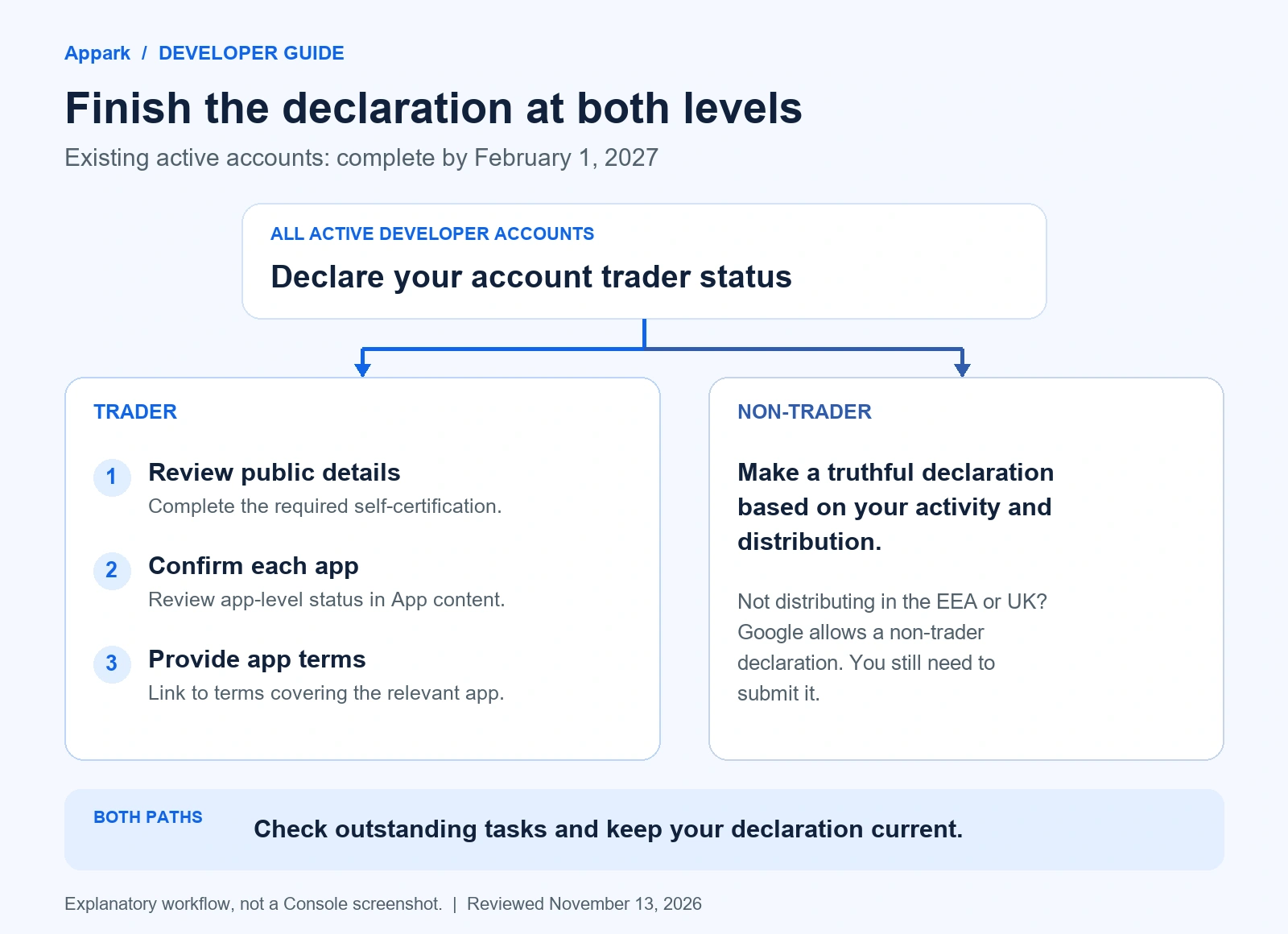
The app-by-app confirmation step applies to trader accounts. This is an explanatory workflow, not a Play Console screenshot.
1. Set your account status
In Play Console, open:
Manage account → Account details → About you
Follow the declaration prompts for the account. Review the business activity and distribution of your apps before making the selection.
Existing developer identity verification does not complete this task for you. The trader declaration is a separate requirement; it does not mean repeating an already completed D-U-N-S verification.
2. Review the details that will be public
Before saving, check the preview of your legal name, address, and contact information. Some identity details come from the Google payments profile linked to the developer account. An old address is easier to catch here than after it appears on a store listing.
Traders must also self-certify that they will offer products or services that comply with applicable laws. Personal-account traders should pay particular attention to the phone number and address that will be displayed.
3. If you are a trader, open every app
Select an app in Play Console, then go to:
Monitor and improve → Policy and programs → App content
Open the app-level trader status and terms of service task. Confirm whether your account's trader status applies to that app, and complete the relevant fields.
The app-level declaration lets you indicate that trader status does not apply to a particular app while leaving the account's trader declaration in place. Use this only where it accurately reflects that app's circumstances. Follow the wording and available options in your own Console.
Repeat the review across your portfolio. A successful account save is not a reliable completion check for every app.
4. Prepare a terms of service page for each relevant app
Google's trader workflow asks for a terms of service link for each app. Use terms that actually cover the app and its service. A privacy policy describes how you handle personal data; it is not automatically a substitute for terms of service.
A practical link check takes a few minutes:
- Open the page in a signed-out browser.
- Use a working HTTPS address without certificate warnings.
- Make sure the terms are readable without signing in or downloading a file.
- Check that the app and the responsible provider are identified correctly.
- Follow any additional URL requirements displayed in Play Console.
For teams with several apps, maintain a simple mapping of package name, terms URL, and review status. Shared terms can be easier to maintain, but their coverage still needs to be clear for each app that links to them.
What users will see from March 1, 2027
The account declaration also affects information published on Google Play. Separate the worldwide changes from the additional EEA and UK disclosures:
| Audience | Information described in Google's trader guidance |
|---|---|
| Users worldwide | Trader contact details, including the phone number and address for individual-account traders; a D-U-N-S number where provided; and the app's terms of service link where supplied. |
| Users in the EEA and UK | The developer or trader name replaces Google in the provider field, and the trader's commitment to comply with local laws is shown. Non-trader declarations carry the relevant consumer-rights notice. |
Review these details before submission, especially if a personal account uses a home address. Non-trader status should not be treated as a way to hide all developer information: other developer profile requirements still apply.
The non-trader notice concerns consumer rights under the relevant laws. It is not a blanket exemption from legal responsibilities.
Before you close Play Console
Use this checklist to finish the task:
- The account declaration reflects current business activity and distribution.
- Public legal and contact details have been reviewed.
- If the account is a trader, the required self-certification is complete.
- Each app under the trader account has been reviewed separately.
- The relevant terms of service links open correctly and cover their apps.
- Play Console shows no outstanding trader-declaration tasks that require action.
- Someone on the team owns future updates if the business model or distribution changes.
A lightweight portfolio record helps: app/package name, distribution regions, account status, app-level confirmation, terms URL, owner, and date checked. Review the Console status directly rather than relying only on a teammate's message that the account was saved.
Frequently asked questions
Can I change my trader status later?
Yes. Google allows you to update the declaration in Play Console when your business activity or distribution changes. After updating the account, recheck the affected apps so their declarations remain consistent with how they operate.
Does a company account have to select trader?
Do not decide from the account label alone. Assess your actual activity and distribution, including Google's provision for developers that do not distribute in the EEA or UK. Keep the declaration truthful and current.
What happens if I miss the deadline?
Google may block app updates or remove apps worldwide. The enforcement risk extends beyond the EEA and UK, so a release plan for other markets is also a reason to complete the declaration on time.
Do I have to repeat D-U-N-S verification?
An already completed D-U-N-S verification does not need to be repeated for this declaration. The trader task is separate from identity verification. For traders, an existing D-U-N-S number may become part of the information users see on the app's detail page.
Keep track of what happens after submission
Keep Play Console as the place to check declaration tasks and policy notices. For ongoing release tracking, Appark's app monitoring can help you follow version and store availability changes for selected apps in supported markets. Enable the Daily Email Digest and select the event types you want to track. When matching events are detected, they are summarized in the following day's email; if none are detected, no digest is sent.
A public listing change does not, by itself, reveal whether a trader declaration caused it. Investigate the reason in Play Console, then update your portfolio record and release plan.